Who this affects
Anyone connecting a Meta, Google, or TikTok ad account for the first time — especially users managing accounts on behalf of clients.
Fastest fix
Before anything else, confirm you have admin-level access to the ad account you're trying to connect. Most permission errors come down to role level. If you're not the account owner or admin, ask whoever manages the account to upgrade your access, then try connecting again.
Meta (Facebook & Instagram) permission errors
"You don't have permission to access this Business Manager"
Why it happens: You're logged into a personal Facebook account, or your account doesn't have the right role in the Business Manager that owns the ad account.
Fix:
- Go to business.facebook.com and confirm you're logged in as the right user.
- Navigate to Settings → People and check your role. You need Admin or Employee with ad account access at minimum.
- If you're an employee, ask the Business Manager admin to assign you Ad account advertiser access or higher.
- Return and retry the connection.
"Account not found" or account doesn't appear in dropdown
Why it happens: Your Facebook account is connected but you haven't given Plai permission to manage it, or there is no ad account on Business Manager.
Fix:
- In Business Manager, go to Settings → Accounts → Ad accounts.
- Confirm the ad account you want to use is listed.
- If it isn't, click Add and follow the prompts to add or claim the account.
- Once the account is confirmed listed, disconnect and reconnect the account.
- Tap on 'Edit previous settings' when logging in to Meta, DO NOT RECONNECT DIRECTLY:
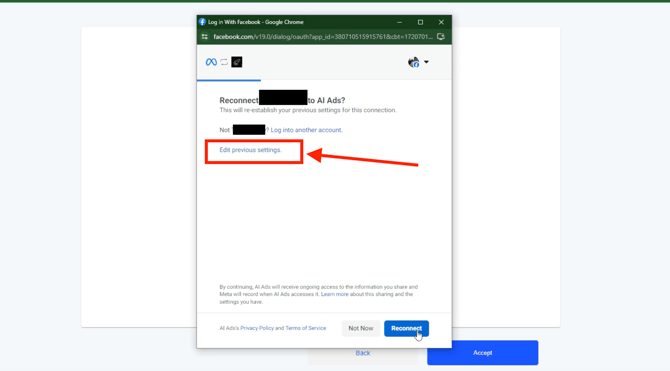
- Opt in to all current and future pages/businesses or ensure that the ad account is checked.
"This account requires Business Verification"
Why it happens: Meta has flagged the Business Manager for verification before allowing new connections. This is a Meta policy requirement, not something you can bypass.
Fix:
- In Business Manager, go to Settings → Business info → Security center.
- Follow the steps to complete Business Verification (typically requires business documents).
- Verification usually takes 1–3 business days.
- Once approved, return and complete the connection.
For full details, see: Fix the Meta verification error.
"You need to accept the Lead Generation Terms of Service"
This is a separate issue. See: Accept lead generation terms of service (Meta).
Google Ads permission errors
"You don't have access to this Google Ads account"
Why it happens: The Google account you logged in with doesn't have access to the Google Ads account you're trying to connect. Google Ads uses separate account-level permissions.
Fix:
- Go to ads.google.com and confirm you can see the account you want to connect.
- If you can't see it, the account owner needs to go to Admin → Access and security and invite your email with at least Standard access.
- Accept the invitation email, then retry the connection.
Manager account (MCC) connection issues
Why it happens: You're using a Manager (MCC) account to manage multiple Google Ads accounts. The platform connects to the individual account, not the MCC.
Fix:
- When connecting, use the individual account ID (the 10-digit number) — not the Manager account ID.
- Make sure the individual account has been linked to your MCC.
- See: Google Ads Manager Accounts (MCC) for full setup steps.
TikTok permission errors
"You don't have access to this TikTok Business Center"
Why it happens: Your TikTok account isn't a member of the Business Center that owns the ad account, or your role doesn't include ad account access.
Fix:
- Go to business.tiktok.com and open the Business Center.
- Navigate to Members and confirm your account is listed with Operator or Admin role.
- If you're not listed, ask the Business Center admin to add you.
- If you only have a personal TikTok Ads account (not a Business Center), you can connect it directly — but for client accounts, Business Center access is required.
"Ad account not linked to Business Center"
Why it happens: The TikTok ad account exists but hasn't been assigned to a Business Center.
Fix:
- In Business Center, go to Assets → Ad accounts.
- Add the ad account by entering its ID.
- Once linked, retry the connection.
General tips for all platforms
- Always use the account that owns or has admin access to the ad account — not a personal or viewer account.
- Clear your browser cache if you've recently switched between Facebook or Google accounts. Old session data can cause connection failures.
- One ad account per platform per workspace. If you need to connect a different account, create a new workspace first.
If nothing works
Contact support through your settings page. When you reach out, include:
- The platform you're trying to connect (Meta, Google, TikTok, LinkedIn, etc)
- The exact error message you're seeing (screenshot is helpful)
- Your Business Manager / account ID if you have it
Related articles
- Why your page or account doesn't appear
- Fix the Meta verification error
- Connect Meta (Facebook & Instagram)